

Excel Basics for Beginners
Before jumping into formulas or shortcuts, it’s important to understand the basic layout of Excel and where to find things. A lot of frustration stems from basic navigation, as Excel has numerous tabs, functions, and features that can feel overwhelming.
This post covers Excel basics for beginners, focusing on the layout, explaining the different sections in the ribbon, and how to navigate Excel with confidence before learning any formulas.
Understanding Excel Terminology
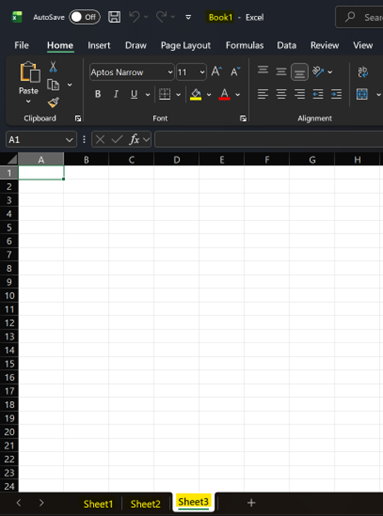
When you open Excel, you’re working inside a workbook. A workbook is the entire file.
Inside that workbook (file) are worksheets, which are the tabs along the bottom of the screen (labelled Sheet1, Sheet2, etc. by default).
In summary:
- Workbook = the full file
- Worksheet = one page inside the file
Cells, Rows, and Columns
Everything in Excel is built using rows, columns, and cells.
Columns
- Vertical array
- Labelled with letters (A, B, C…)
Rows
- Horizontal array
- Labelled with numbers (1, 2, 3…)
Cells
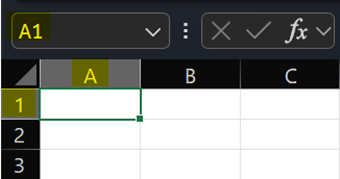
A cell is where a row and column meet, creating a unique sequence.
For example:
- A1 = column A, row 1 (shown in image)
- C5 = column C, row 5
This is called a cell address. Cell addresses, or cell references, are the makeup of all formulas in Excel, and you will use these every time you ask Excel to perform a task on data inside a cell.
The Name Box & Formula Bar
At the top of your worksheet, you’ll see two important areas:
At the top of your worksheet, you’ll see two important areas:
Name Box
- Shows the address of the selected cell
- You can also type a cell reference here to jump to it quickly
- We will cover this in a later article!
Formula Bar
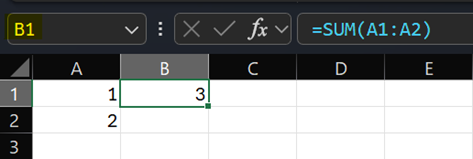
- Displays what’s inside the selected cell
- This is where formulas are written and edited
If a cell contains a formula, the formula bar will show the formula — not the result.
Additionally, to make Excel calculate something, you must start with an equals (=) sign.
Without it, Excel treats the entry as text and won’t calculate anything for you.
Utilizing these few concepts is foundational to learning Excel basics for beginners.
The Ribbon (Top Toolbar)
The ribbon is the menu that runs across the top of Excel. Each tab groups similar tools together.
You don’t need to memorize everything. Having a general idea of what each section is used for should be enough to make your Excel navigation smoother.
Home Tab (Most Important)

This is where beginners spend most of their time.
Includes:
- Font, text and conditional formatting
- Cell borders and fill colours
- Alignment options
- Number formats (currency, percentage, etc.)
Insert Tab

Used to add things into your sheet:
- Tables
- Charts
- Images and shapes
You won’t use this much at first, but it becomes useful once you start organizing data visually.
Draw

The Draw tab is mostly used for freehand drawing and annotations, usually on touchscreens or tablets. If you’re using a mouse and keyboard, you may not use this tab very often.
Inside the Draw tab, you’ll find tools like:
- Pens, highlighters, and pencils
- Erasing tools
- Ink color and thickness options
This tab is commonly used for:
- Marking up spreadsheets
- Writing notes directly on a worksheet
- Drawing arrows or quick visuals during reviews
For most people learning Excel basics for beginners, the Draw tab isn’t essential right away. It becomes more useful if you’re using Excel with a touchscreen, stylus, or reviewing files collaboratively.
Page Layout Tab

Controls how your sheet looks when printed:
- Margins
- Orientation
- Scaling
It also includes some additional options for arranging elements, like bringing items forward or sending them backward, as well as alignment tools.
Most people don’t touch this until they need to print or export something in a specific format.
Formulas Tab

This is where Excel stores all of its built-in formulas.
You don’t need to memorize anything here. This makes your life easier for referencing formulas again based on their function (financial, logical, etc.).
Data, Review, and View Tabs
These are more situational:
- Data: sorting, filtering, importing data

- Review: comments, spelling errors, statistics, workbook protection

- View: zoom, layout, freeze panes

I would say the data tab is the second most-used tab when working with the basics of Excel. There are many times I find myself manually going to this tab to filter data because I still can’t remember the keyboard shortcut for it (Ctrl + Shift + L, by the way).
As an additional note, converting your data into a table and using filters to manage what you’re viewing at one time makes sorting and reviewing data so much easier.
Using the keyboard shortcut creates dropdown arrows that allow you to filter your data, but you can also do this directly through the filter function in the data tab, as shown in the photo.
The review tab is one I didn’t really use at first, and I only started using the view tab later on to freeze panes while scrolling. All the tabs have their place, and you may find yourself needing to become more familiar with tabs I didn’t focus on as much when I first learned Excel.
We’ll cover each one over time, and you’ll still be able to find what you’re looking for as you go.
For the purpose of this article and covering the basics of Excel, we won’t be covering the automate tab in this post.
Saving Your Work
A simple habit that saves a lot of stress:
- Name your file right away
- Save often (or turn on AutoSave)
When naming your file, try to use a name you know you will remember, accompanied by a date to track your workbooks more easily.
Example: Monthly Budget – March 2025.xlsx
What You Should Know After This
After this post, you should be able to:
- Identify rows, columns, and cells
- Understand what a workbook and worksheet are
- Navigate the ribbon with confidence
- Know where formulas are written
- Feel comfortable opening and moving around Excel
You don’t need to memorize anything yet. Have a general idea of where things are located and get comfortable navigating the areas you’ll use most.
Spending time getting familiar with the layout and where different functions are located will make using Excel faster and a lot more enjoyable.